Blooket Login: The Fastest Way to Access Your Account
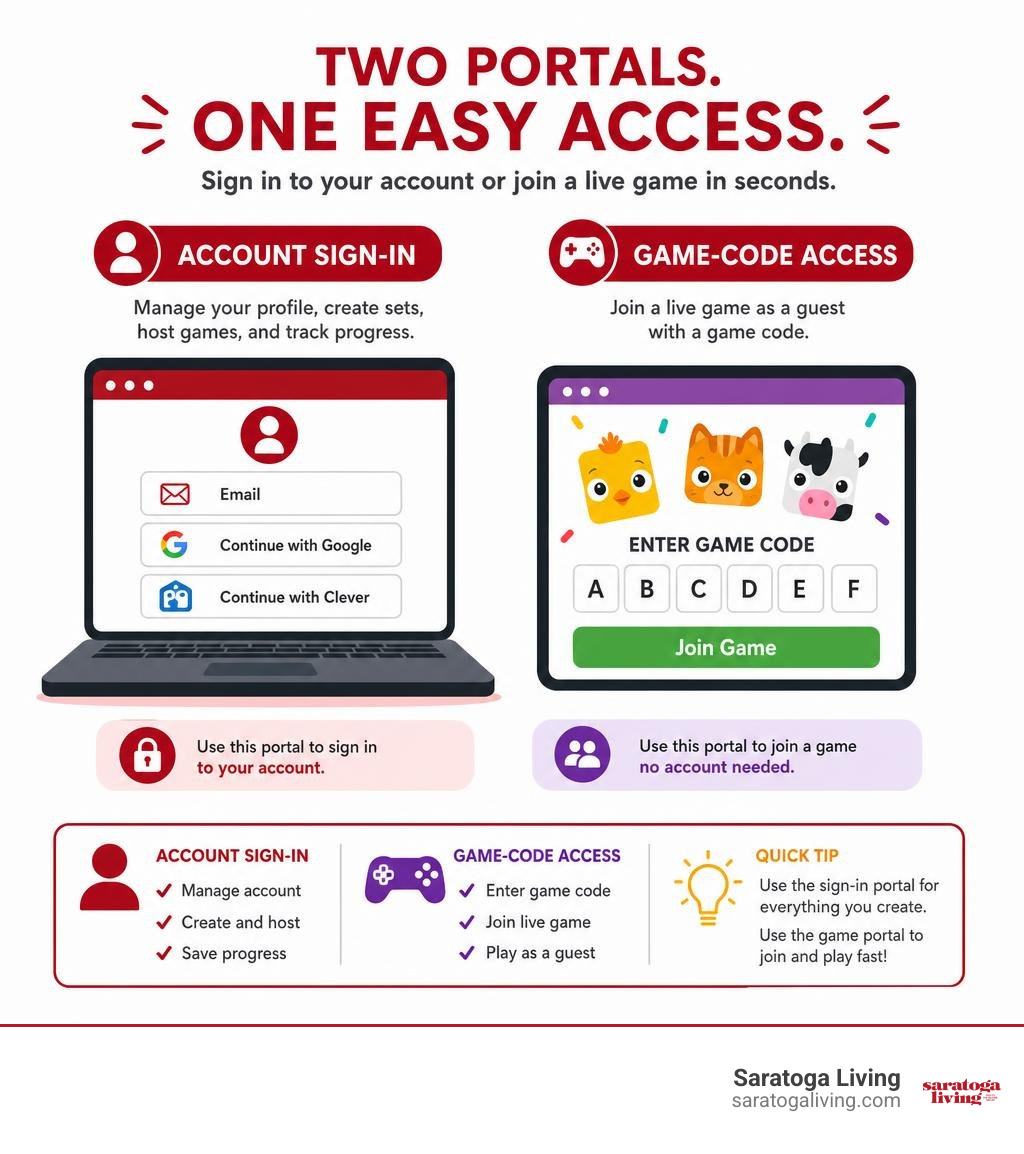
A Blooket login starts at id.blooket.com/login. Use the same method you chose when creating your account: email and password, Google, or Clever if your school district has enabled it.
| What you need to do | Where to go | Do you need an account? |
|---|---|---|
| Sign in to manage games, sets, or progress | id.blooket.com/login | Yes |
| Join a teacher’s live game | play.blooket.com | No – enter the game code |
| Create a new account | Blooket sign-up page | Yes |
Blooket is a browser-based learning game platform used by teachers and students. Teachers generally sign in to build question sets, host games, and review results. Students can sign in to keep their profile progress, or join a live session as a guest with the code shared by the host.
In the sections ahead, Guest Posts explains the quickest sign-in route, the difference between logging in and joining a game, and what to check when access fails.
Accessing the Blooket Login Portal and Sign-In Methods
When we set out to navigate educational gaming tools, having a clear understanding of account entry points saves valuable learning time in the classroom. Blooket (pronounced “Blue-kit”) relies on two distinct web portals: administrative account management and live gameplay participation.
To manage your custom question sets, review student detailed analytics, or check your collectible Blook inventory, you must authenticate through the primary portal. The safest and most direct web destination is id.blooket.com/login. Entering this exact sub-domain into your browser address bar prevents getting caught in unnecessary homepage redirects or clicking sponsored search ads on mistyped web domains.
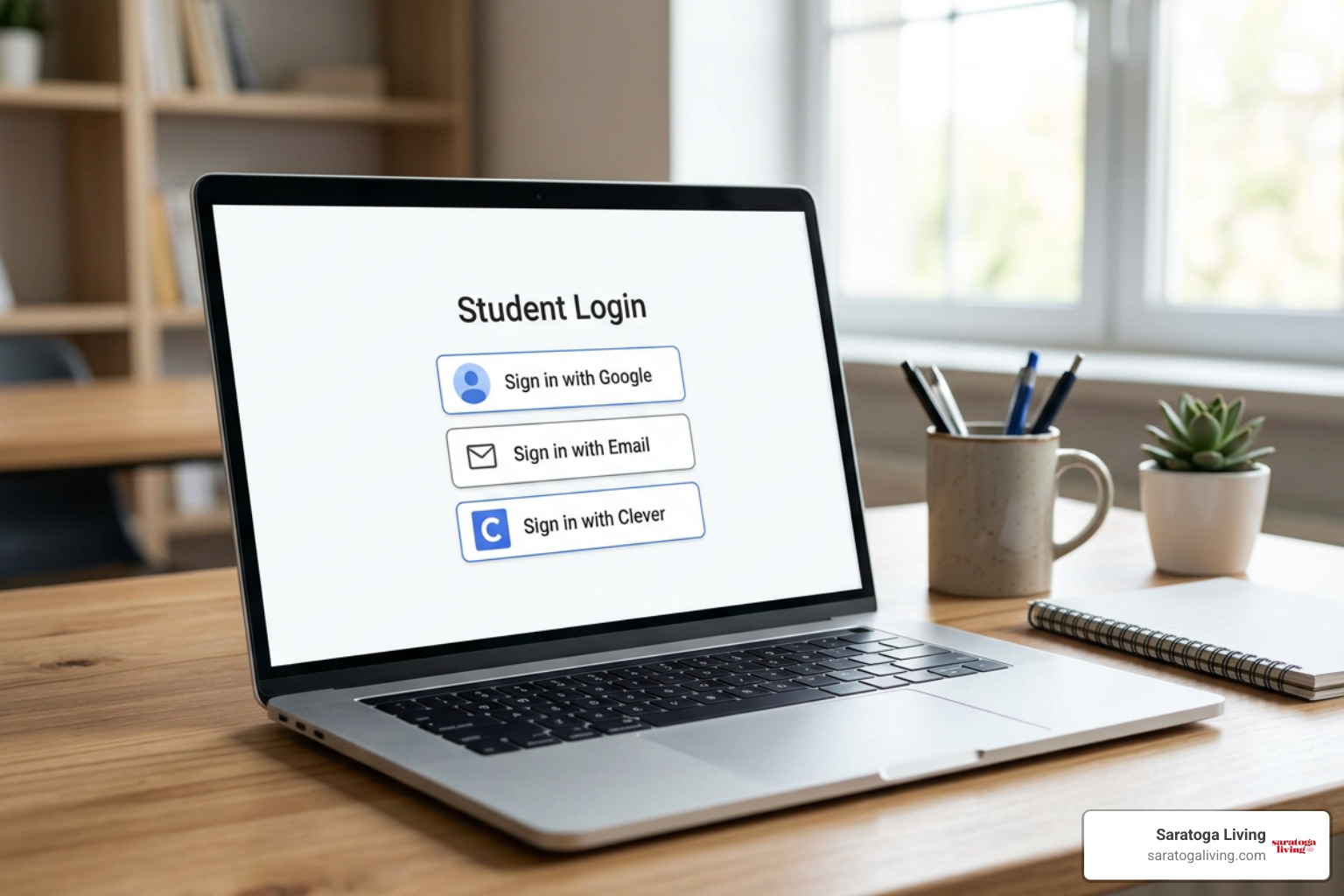
| Authentication Method | Ideal User Group | Setup Speed | Security & Key Feature |
|---|---|---|---|
| Google Sign-In (OAuth) | Teachers & Chromebook Students | ~5 seconds | One-click single sign-on without managing custom passwords. |
| Email & Password | Independent Users & Home Educators | ~30 seconds | Traditional credential login secured by custom password reset options. |
| Clever Single Sign-On | Integrated K-12 School Districts | Instant via Portal | Automated district roster sync (requires active IT administrator setup). |
Step-by-Step Teacher and Student Blooket Login
Whether you are an instructor setting up a morning review game or a student signing in to unlock seasonal Blooks, completing a blooket login is simple. Standard dashboard load times take roughly 3 to 5 seconds after credentials are verified.
For returning users across Windows, Mac, iOS, Android, or Chromebook devices, follow these action steps:
- Open your web browser and navigate directly to
id.blooket.com/login. - Select your established authentication path (Google, email/password, or Clever).
- Input your account credentials carefully, ensuring capitalization and spelling are accurate.
- Click or tap Let’s go! to load your user dashboard panel.
If you are setting up your profile for the first time, check out How to Login to Blooket: The Complete Step-by-Step Guide to walk through basic setup parameters. Once logged in, teachers land on the primary control panel where they can browse over 15 distinct game modes, access the Discover set library, or schedule asynchronous practice using Homework Mode. Students who complete the sign-in step enter their personal dashboard to check coin balances, open mystery boxes in the Market, or adjust account settings.
Email, Google Workspace, and Clever SSO Blooket Login
For school environments utilizing Google Workspace for Education, using Google OAuth stands out as the cleanest sign-in experience. Clicking Sign in with Google leverages your active browser session, bypassing manual password entries entirely. This is particularly efficient on managed school Chromebooks where students are already signed into district Google accounts.
Clever Single Sign-On (SSO) offers another streamlined workflow for primary school learners. However, we frequently hear from educators wondering why the Clever icon does not appear on their login page. The Clever tile is dynamic—it only renders on the interface if your school district’s IT administrator has formally configured the Blooket integration within your district app management hub.
For users preferring standard email authentication, enter your registered email address and secure password. To review account registration options, third-party authentication features, and live game entry rules, read Blooket Login 2026: Sign Up, Log In, and Join to Play a Game for extra context on updating account credentials.
How to Create an Account and Reset Forgotten Passwords
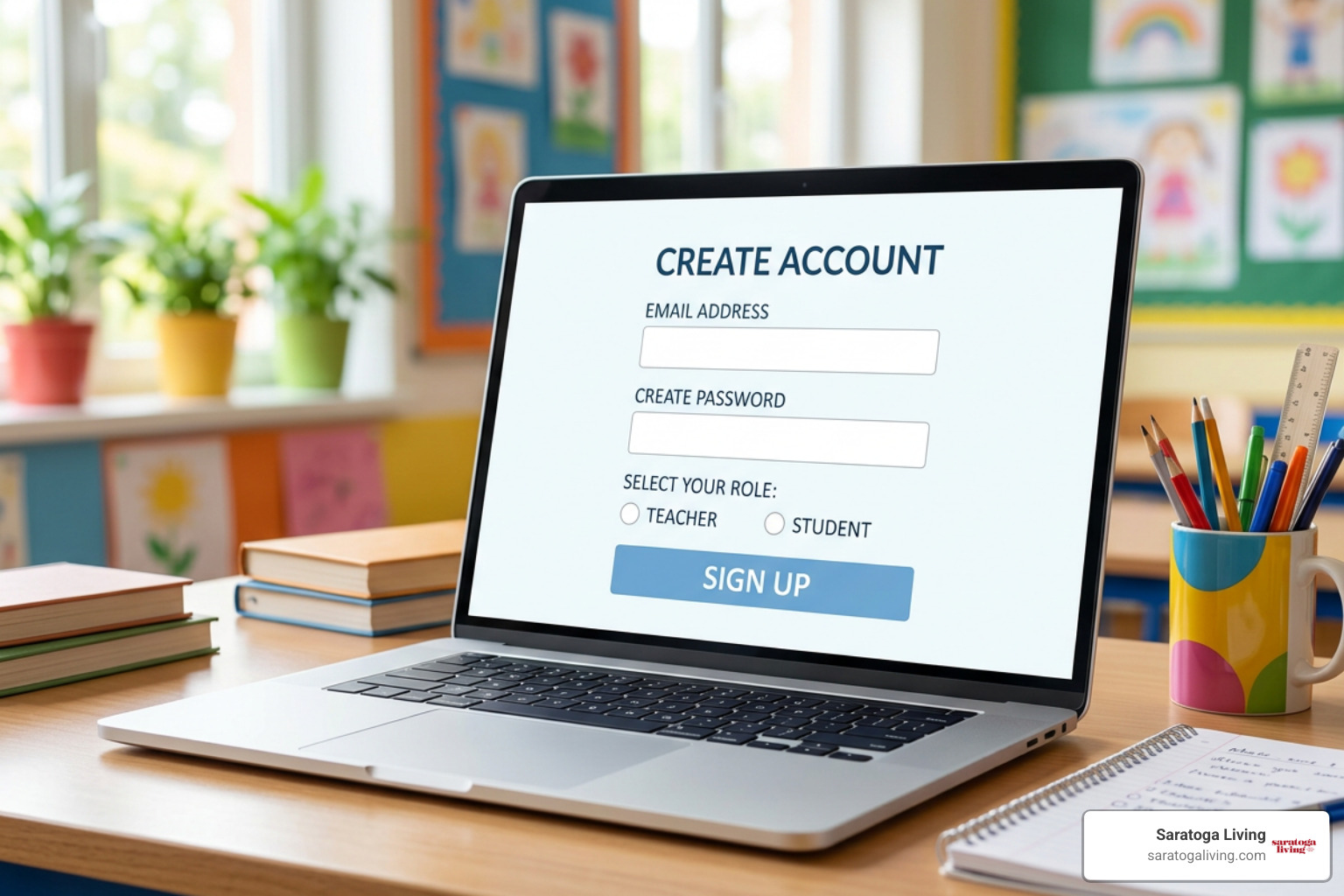
Creating a new profile takes under two minutes. However, understanding registration guidelines ensures account safety and smooth compliance with educational privacy regulations.
Registration Requirements and Email Verification
To register an independent account directly on Blooket, privacy regulations require users to be at least 13 years old in the United States (and 16 years or older across most international regions). During registration, you will select either a Teacher or Student account role, specify your date of birth, and declare your geographic region.
When registering via traditional email rather than single sign-on, Blooket issues an email verification code to confirm mailbox ownership. A common obstacle in K-12 settings occurs when school districts restrict incoming external emails on student email domain addresses. If a school domain blocks external system notifications, verification emails cannot deliver.
To overcome this constraint:
- Use Google Sign-In with your school Google Workspace credential to bypass email code verification.
- Ask district network administrators to whitelist domain notifications from
@blooket.com. - Register using an alternative email address properly configured to accept incoming external mail.
Never close or refresh your registration browser window until you retrieve and enter the required verification code.
Recovering Access with Password Reset Links
Forgetting password credentials happens to everyone. Fortunately, recovering account access takes only a couple of minutes:
- Head to
id.blooket.com/loginand click the Forgot Password? link located below the credential inputs. - Enter the registered email address associated with your profile.
- Open your email inbox and click the password reset link issued by Blooket.
- Create a fresh, secure password and sign back in.
Account protection mechanisms will temporarily lock your account for 15 to 30 minutes after 5 to 10 consecutive failed password attempts. If you hit an account lockout, wait out the security timer rather than continuously entering incorrect credentials, which resets the lockout clock.
Logging In vs. Joining as a Guest with a 6-Digit Game Code
One of Blooket’s greatest strengths in active classroom management is distinguishing between hosting and participating. Understanding this boundary keeps classroom instructions clear and saves precious instruction time.
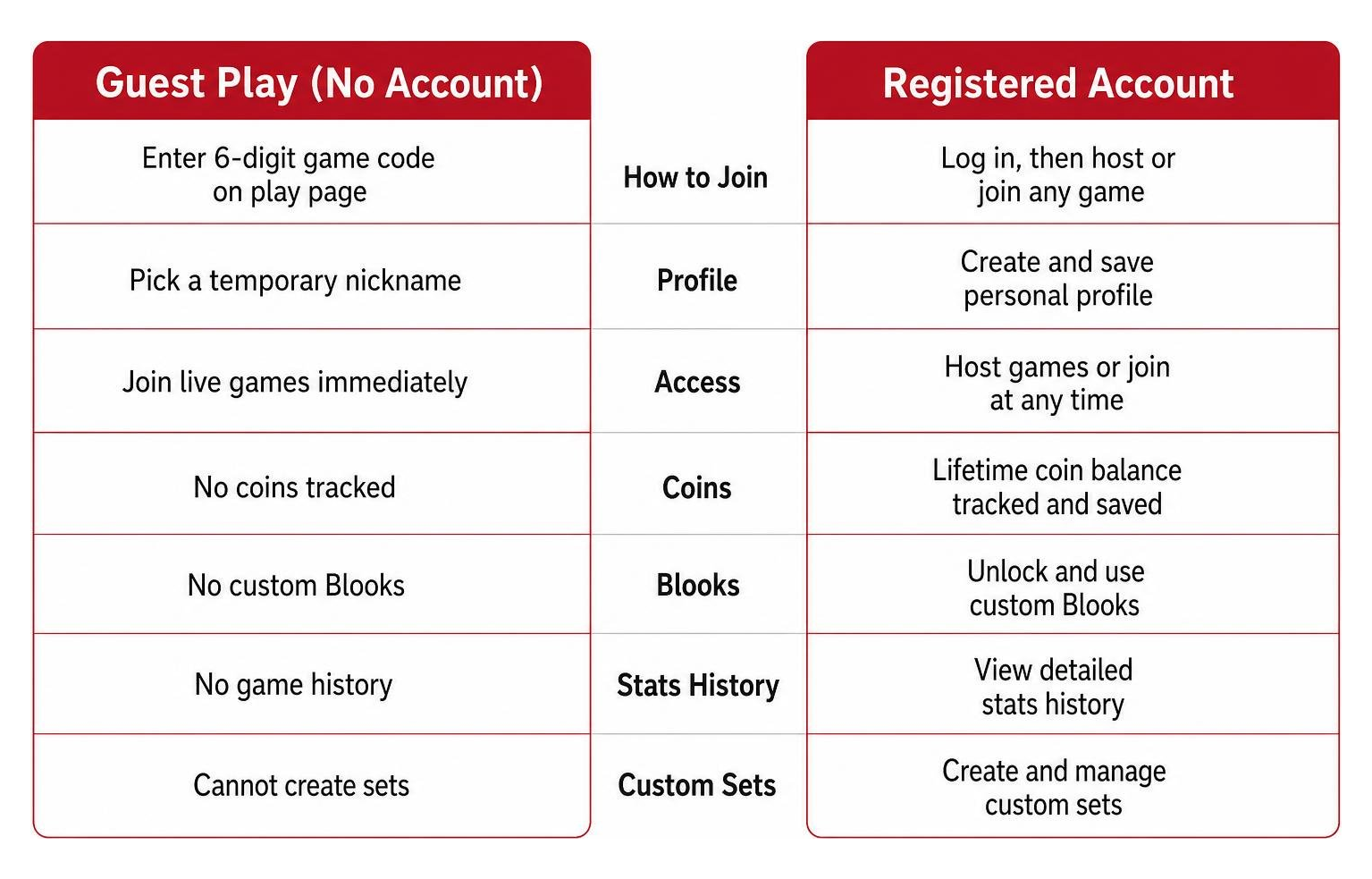
- Guest Participation (No Account): Designed for fast classroom entry. Players enter a 6-digit game PIN, pick a temporary nickname, and join live multiplayer rounds immediately.
- Registered Account Access: Required for game hosts and optional for students. Unlocks lifetime coin tracking, custom Blooks, stat history, and custom set creation.
Joining Live Sessions via play.blooket.com
When an instructor hosts a live session, students do not need to perform a full account login step. The host projects a unique game access code on screen (typically a 6-digit or 7-digit numeric PIN).
Students follow these fast action steps:
- Open any modern mobile, tablet, or desktop web browser and go to
play.blooket.com. - Type the active game code displayed on the teacher’s screen.
- Enter a classroom nickname (or let the host’s “Random Names” filter auto-generate one).
- Select a temporary Blook avatar and wait in the lobby for the game to start.
For a deep dive into non-registered gameplay and guest privacy safety, consult the guide on how to Use Blooket Without Account: Complete Player Guide. Playing as a guest eliminates password management overhead for quick 10-minute review sessions.
Benefits of Registered Accounts for Tracking Blooks and Coins
While guest mode is convenient, registering and logging into a student account introduces motivational learning layers. Every correct answer in game modes like Gold Quest, Crypto Hack, Tower Defense, or Café yields in-game tokens.
Logged-in players can:
- Accumulate Tokens: Save virtual coins earned across multiple games and days.
- Unlock Collectibles: Visit the Market to open mystery boxes and collect rare Blooks spanning common, uncommon, rare, epic, legendary, chroma, and mystical tiers.
- Track Detailed Statistics: Review total games played, correct response percentages, and overall accuracy over time.
- Customize Avatars: Design custom Blooks using Class Pass elements on the Stats dashboard page.
When playing in guest mode, all earned tokens, temporary unlocked Blooks, and accuracy scores reset completely as soon as the browser tab closes.
Troubleshooting Blooket Login Errors and Network Problems
Even reliable edtech web applications encounter technical glitches. When a blooket login attempt fails, knowing how to isolate local device issues, browser errors, or school network filters will get your session back on track quickly.

Resolving 502 Bad Gateway and White Screen Errors
When logging in, users occasionally encounter a blank white screen, a loading wheel loop, or a HTTP 502 Bad Gateway response. A 502 error indicates a temporary communication disruption between Blooket’s server infrastructure and local edge routing.
To resolve these display and load errors:
- Avoid Repeated Rapid Clicking: Constantly hitting the refresh button during server slowdowns can flag your IP address under automated bot security limits.
- Perform a Hard Refresh: Use
Ctrl + F5on Windows/Chromebooks orCmd + Shift + Ron Mac to bypass cached page copies. - Clear Browser Cache and Cookies: Navigate to your browser security settings and clear “All Time” cached images and files.
- Test Incognito / Private Browsing: Opening an incognito window disables third-party browser extensions (such as ad blockers or strict security add-ons) that might interfere with script rendering.
If persistent errors occur, refer to How to fix Blooket login issues? for dedicated system diagnostic checks.
Account Lockouts, Cookie Restrictions, and Firewall Debugging
When accounts repeatedly log out or freeze upon submitting credentials, local tracking configuration or school firewall rules are usually responsible.
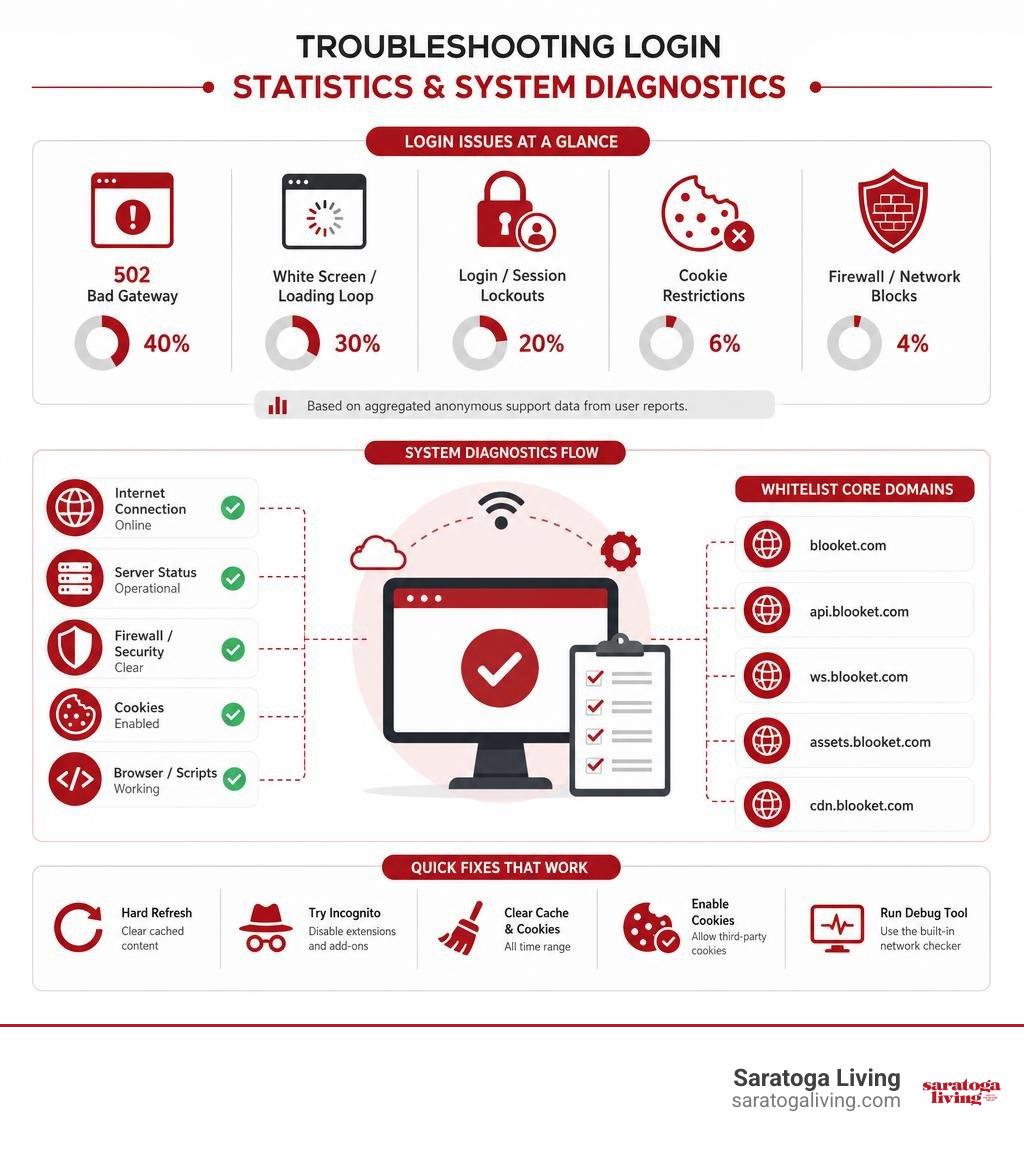
Common fixes include:
- Enable Third-Party Cookies: Blooket requires active session storage cookies to maintain state. Ensure browser privacy settings allow cookies for
blooket.com. - Utilize Blooket’s System Debug Tool: If you suspect school network firewalls are blocking game traffic, navigate to
debug.blooket.com. This built-in diagnostic page checks websocket connectivity, domain authorization, and network ports. - Whitelist Core Domains: Request that your school district network administrator whitelist the following essential domains on district firewalls and content filters:
*.blooket.comid.blooket.complay.blooket.comfirebase.googleapis.com(for backend user state synchronization)
Frequently Asked Questions about Blooket
What is the correct direct URL for logging in to Blooket?
The official direct login page for existing accounts is id.blooket.com/login. Alternatively, navigating to blooket.com and selecting the Log In button in the top right corner redirects you to the identical authentication portal. We recommend bookmarking id.blooket.com/login on school devices to bypass public landing page redirects.
Do students need an account to join a Blooket game?
No, students do not need an account to join a live game session. Students can go directly to play.blooket.com, enter the 6-digit game PIN provided by their teacher, pick a nickname, and participate as a guest. Creating an account is only required if students wish to save their earned coins, unlock Blook avatars, and preserve lifetime statistics.
Why is the Clever single sign-on option missing?
The Login with Clever button is dynamic and only renders on the Blooket sign-in interface if your specific school district’s IT administrator has enabled the Blooket integration inside the district’s Clever dashboard. If you do not see the Clever option, log in using your school Google Workspace account or contact your district technology support desk.
Conclusion
Mastering your blooket login workflow—whether through Google Workspace, email credentials, or Clever single sign-on—ensures seamless access to one of the modern classroom’s most powerful gamified learning platforms. By understanding the distinction between hosting from blooket.com and joining sessions at play.blooket.com, educators and students can maximize learning time and keep tech glitches at bay.
At Saratoga Living, we take pride in exploring educational technology trends, digital media tools, and community culture across New York’s Capital Region and beyond. Explore educational tech and Capital Region culture on Saratoga Living to stay connected with expert local insights, culture coverage, and practical guides. Bookmark your direct login links, keep your credentials handy, and enjoy leveling up your classroom learning experience!